
Microsoft Teams for coaching: possibilities and limits
Microsoft Teams for coaching: possibilities and limits

What can you do with Microsoft Teams coaching?
Microsoft Teams offers coaches a number of useful features, but it is not a full-fledged practice management system. The core of what Teams can offer for coaching lies in three components: Speaker Coach, Teams Premium, and Copilot.
Speaker Coach gives you real-time feedback during a meeting on your speaking pace, filler words, and pitch. Afterward, you receive a personal report. Handy for coaches who want to improve their own presentation style. But there are clear limits:
- Speaker Coach only works in English; the language setting of Teams must be set to English
- The feature does not work in channel meetings or sessions started via “Meet now”
- You must enable Speaker Coach separately on each device; the setting resets after logging out
- Audio and transcripts are deleted immediately after the meeting; only the summary report is retained
Teams Premium and Copilot add features such as smart summaries and suggested action items. Copilot in Teams only works if recording and transcription are enabled and all participants have the appropriate licenses. Features such as meeting branding and lobby settings require a Teams Premium license and must be configured by an IT administrator.
What Teams does not offer: structured client records, session notes linked to a coaching journey, goal tracking, accountability follow-up, or a secure portal for clients. For one-on-one conversations or group sessions, Teams is usable as a video tool. As soon as you want to organize your practice, it falls short.
Table of contents
- Governance and privacy: what does a coach run into?
- How do you use Teams effectively as a coach?
- Exantur: software built for coaching practices
- What concretely makes Exantur different for coaching management?
- How do you integrate Teams with other coaching tools?
- Teams for individual coaching versus group sessions
- Key takeaways
- Frequently asked questions
Governance and privacy: what does a coach run into?
Teams is built for collaboration within organizations, not for confidential client relationships. You notice that difference as soon as you involve clients.
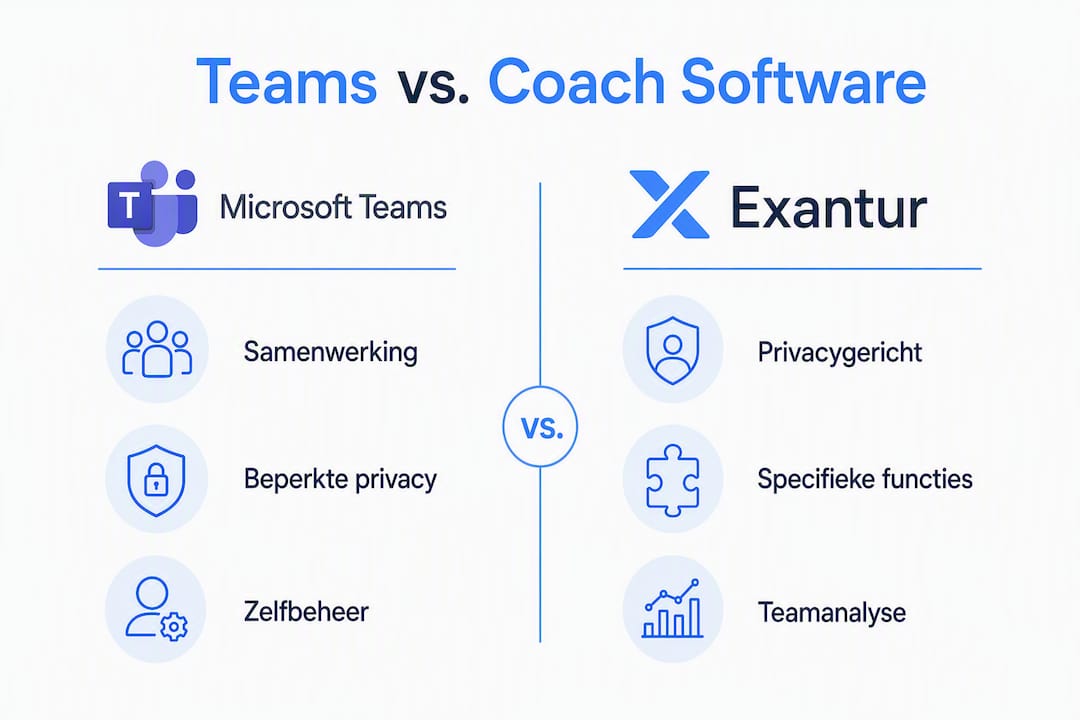
The NCSC warns that employees can create collaboration spaces in Teams themselves by default. Without clear agreements, loose channels with client information that is not properly protected quickly appear. Data can be unintentionally visible to colleagues, or remain in a forgotten environment. This conflicts with the GDPR, the European privacy law that obliges coaches to store and secure personal data carefully.
Teams supports up to 25,000 members per team, but uncontrolled growth of teams and channels leads to fragmentation of client data. This phenomenon is called “Teams sprawl”: more and more loose spaces, less and less overview. For a coaching practice, this concretely means you no longer know where a particular note is stored, who has access to which conversation, or whether a client record is still current.
Practical risk: default settings in Teams are not designed to strictly separate sensitive client data from other company information. That requires deliberate configuration and active management.
Concrete points of attention for coaches who use Teams:
- Limit who may create new teams and channels
- Make clear agreements about which information you share via chat versus via a secure record
- Set how long shared files remain accessible to external clients
- Regularly check which external persons have access to which spaces
- Ensure a data processing agreement is in place if you process personal data via Microsoft
Without IT support, this is difficult to manage for most solo coaches. The GDPR sets requirements for how you store and secure data, and Teams offers no ready-made solution for that.
How do you use Teams effectively as a coach?
Experts from AVK Training & Coaching put it sharply: the difference between using Teams and truly leveraging Teams lies not in the technology, but in behavior and agreements. Without that foundation, Teams becomes a source of noise rather than structure.
In practice, this means:
- Set clear goals in advance: what do you use Teams for, and what not?
- Make behavioral agreements with clients about communication via chat, files, and meetings
- Ensure a fixed structure in the naming of channels and folders
- Limit the number of apps that clients or colleagues can add to a Teams environment
Pro tip: Prevent Teams sprawl by limiting the creation of new teams and channels to an administrator. This way you keep an overview and prevent client information from becoming fragmented across dozens of loose spaces.
For coaches without an IT department, onboarding clients into Teams is extra vulnerable. A client who accidentally gains access to another client's channel is a serious privacy problem. Therefore, consider additional tools for managing client records, goals, and session notes. More background on Microsoft Teams and email also helps you determine which channel to use when.

Exantur: software built for coaching practices
Exantur is not a communication tool with coaching features tacked on. It is built from the ground up around the coaching relationship, with the starting point: what does a coach need before, during, and after a session?
The most important features at a glance:
- Client management: all clients, journeys, and documents in one place, linked to the right coaching program
- Session notes: recorded as observations, insights, breakthroughs, and action items, searchable per client
- Goals and progress: coaches track what has been agreed and see immediately where a client stands
- Accountability: open actions and habits are visible between sessions
- Check-ins: clients report how things are going between sessions, so the coach is well prepared at the table
- Client portal: clients have access to their own environment for goals, assignments, and documents
- Assessments: structured tools such as the DISC profile and Wheel of Life are built in
Privacy is not an afterthought at Exantur. The platform works with EU hosting in Frankfurt, multi-factor authentication (MFA, where you provide a second confirmation in addition to a password), and strict separation of data per organization. A data processing agreement is available. Exantur supports coaches in GDPR-conscious data processing, but using the software does not automatically make a practice fully GDPR-compliant.
| Feature | Microsoft Teams | Exantur |
|---|---|---|
| Video meetings | Yes | No (no built-in video) |
| Session notes per client | No | Yes, structured and searchable |
| Tracking goals and progress | No | Yes |
| Accountability between sessions | No | Yes |
| Client portal | No | Yes |
| GDPR-conscious EU hosting | Partly (depending on configuration) | Yes, built in by default |
| Structuring coaching programs | No | Yes |
| Assessments (DISC, Wheel of Life) | No | Yes |
What concretely makes Exantur different for coaching management?
Teams asks you to build structure yourself with channels, folders, and agreements. Exantur already has that structure. That sounds like a detail, but in practice it saves hours per week.
Coaches who want to keep session notes in Teams have to devise a system themselves: a note in OneNote, a file in SharePoint, a message in the chat. That information is scattered and hard to find. In Exantur, notes are directly linked to a client and a session, and are searchable.
The same applies to accountability: in Teams you have no overview of open actions per client. You have to keep track yourself of what has been agreed. Exantur shows this automatically, including which habits are being tracked and where a client may need extra attention.
For coaching organizations with multiple coaches, Exantur also offers team analysis and organizational functionality. Coaches work in their own protected environment, while an organization administrator maintains oversight.
What Exantur does not have: appointment scheduling, invoicing, payment processing, or video hosting. It deliberately focuses on the coaching process itself. For video, you continue to use Teams or another tool.
Exantur offers a 14-day trial period. Payment details are required at the start; the subscription begins automatically after the trial period, unless you cancel. You can find more about subscriptions and licenses on the Exantur pricing page.
How do you integrate Teams with other coaching tools?
Teams works best as a video tool within a broader whole. Coaches often combine it with separate tools: a note-taking app, a spreadsheet for goals, email for documents. That works, but it costs time and increases the risk of errors.
A better approach is to use Teams for what it does well (video calls, quick messages with colleagues) and use a specialized platform for the coaching process itself. That way you don't have to switch between five different environments for a session.
Exantur has no direct integration with Teams, but works alongside Teams. You conduct the conversation in Teams and record everything that matters in Exantur: notes, goals, action items, and check-ins. More background on how you manage coaching programs helps you build that structure.
Teams for individual coaching versus group sessions
For one-on-one coaching, Teams is reasonably usable as a video tool. You schedule a meeting, conduct the conversation, and wrap up. The limitations lie in what happens afterward: there is no structured place for notes, no overview of goals, and no way to track accountability.
With group coaching, the limitations grow larger. You have multiple participants, each with their own progress and agreements. Teams offers no way to track that per participant. Breakout rooms are available for group exercises, but the content of those conversations disappears as soon as the meeting closes.
Speaker Coach only works for the person who enabled the feature, not for participants. That makes it of little practical use as a coaching tool for groups. Copilot can create a summary of the group session, but that requires recording and transcription, which raises extra privacy questions in confidential coaching conversations.
[IMAGE:cta_image]
Do you want to organize your coaching practice better? Exantur is built for exactly that: an integrated workspace for client management, session documentation, goals, and accountability. Try it free for 14 days.
Key takeaways
Microsoft Teams is a usable video tool for coaches, but it offers no structured system for client management, session documentation, or accountability. Specialized software such as Exantur fills that gap.
| Point | Details |
|---|---|
| Speaker Coach only in English | The feature does not work in Dutch and must be enabled separately on each device. |
| Teams sprawl increases privacy risks | Uncontrolled growth of channels leads to fragmentation of client data and GDPR problems. |
| Governance requires active management | Without IT support and clear agreements, Teams falls short for confidential coaching practices. |
| Exantur structures the coaching process | Notes, goals, accountability, and check-ins are linked to the right client and the right journey. |
| Teams and Exantur complement each other | Teams for video, Exantur for the coaching process: together you cover the entire journey. |
Frequently asked questions
Does Speaker Coach work in Dutch?
No. Speaker Coach currently only supports English; the Teams app must be set to English to be able to use the feature.
How do I prevent privacy issues when coaching via Teams?
Make clear agreements about which information you share, limit who can create channels, and sign a data processing agreement with Microsoft. The NCSC also advises deliberately limiting external access and checking it regularly.
What does Teams Premium cost for coaches?
Microsoft Teams Premium requires an additional license on top of an existing Microsoft 365 subscription. The exact price depends on your organization's size and subscription type; consult the Microsoft website for current rates.
What is the difference between Teams and Exantur for coaching?
Teams is a communication platform with limited coaching features. Exantur is built specifically for coaching practice management, with structured session notes, goal tracking, accountability, and a secure client portal.
Can I use Teams and Exantur alongside each other?
Yes. You use Teams for video calls; you use Exantur for recording notes, goals, and agreements. They complement each other without a direct technical integration.